Make an explicit protection choice
Dashi waits for your first-launch choice before recording copies. You can select password-encrypted history or storage without encryption. Local describes where data is kept, not how its on-disk contents are protected.
When enabled, AES-256-GCM protects supported content, previews and thumbnails. Some metadata remains visible, including dates, sizes and pin flags. Choose a long, hard-to-guess password: there is no password recovery.
Closing the panel is not a full lock
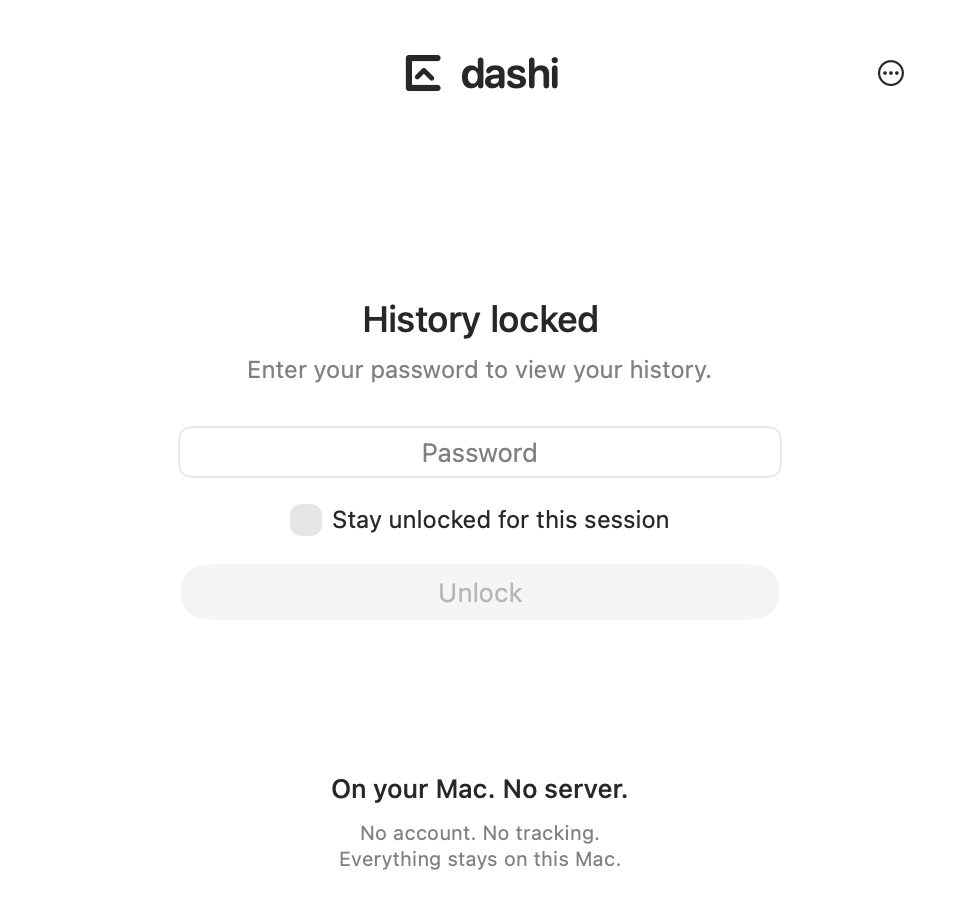
After the first unlock, closing the panel conceals the history while encrypted recording can continue. A full lock suspends captures and refuses repository access until unlocking. Copies skipped while fully locked are not imported afterwards.
Encrypted history locks after five minutes of Mac inactivity by default. You can choose 1, 5, 15 or 30 minutes. Remembering the session does not bypass that limit. The idle check is periodic, not a promise of a millisecond-precise deadline.
Exclude sensitive applications
History settings let you exclude applications. Dashi can suggest supported password managers it finds installed, with a visible, editable list rather than silently enabling exclusions. A copy from an excluded app can still be pasted normally, but is not added to new Dashi history.
Attribution relies on the foreground app. It cannot perfectly identify background clipboard writers, including browser extensions. Recognized confidential markers provide another signal, not guaranteed detection of all secrets. Adding an exclusion does not remove copies that were already recorded.
What this protection does not cover
- The system clipboard and the application receiving a paste.
- Old backups or file copies made before encryption was enabled.
- Content you subsequently share in email, documents or other services.
- A compromised Mac or privileged access while the history is unlocked.
Dashi not sending history to a server does not mean your other apps never sync data. Those are separate flows. Deleting an entry is not a guarantee of forensic erasure of every previous trace either.
A practical routine for work copies
Enable encryption when keeping work content. Exclude sensitive apps, set an appropriate retention period and review pins. Pause recording before an operation you do not want in your history. Do not deliberately copy secrets just to test whether they are detected.
The goal is not to keep everything indefinitely. Keep the material you need and reduce unnecessary retention. Read the detailed privacy policy for behavior and limitations; this guide is not a substitute for assessing your own security requirements.
A common question
Does locking Dashi clear my current system clipboard?
No. Locking protects access to Dashi history and suspends recording. It does not clear or encrypt the system clipboard. Check the content you are about to paste separately.
Sources and product behavior
Dashi behavior described here applies to the current version for macOS 14 or later. Example people and projects are fictional.